
Archive WordPress with HTTrack
Claude AI is my personal SysAdmin and Linux Guru Now

I’ve been running WordPress websites since 2005, and creating webpages since 1995. Over that time I’ve accumulated a lot of sites including different blogs, professional development sites, projects, podcasts, and communities I’ve been part of. Many of them aren’t active any longer, but some sites still have content I want to preserve.
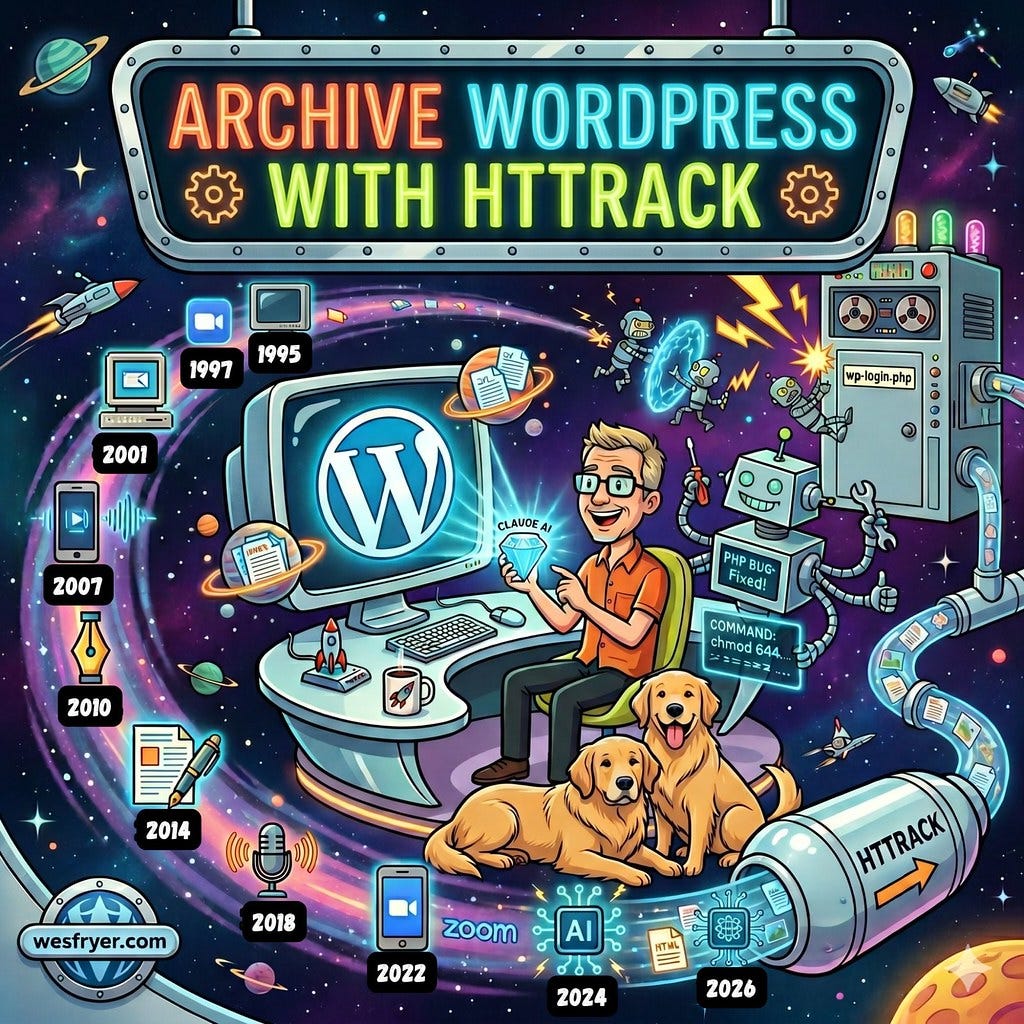
The problem is that every inactive WordPress site sitting on a server is a security vulnerability and liability. Bots now hammer wp-login.php (the admin login page for every WordPress site) around the clock. PHP processes spin up. Memory gets consumed. Servers users pay for each month have to work harder than necessary, serving sites (in some cases) that no one is actively updating, and REAL people rarely access. (Though bots try to access / do access many sites constantly, even when robots.txt officially prohibits that access.)
I’ve used WordPress security plugins like iThemes Security (now Kadence Security) and WordFence, as well as Securi on different sites over the years. Updating and managing these plugins can be a time consuming headache itself, however. Online website security is challenging, and is good reason to use entirely hosted, free managed solutions like Google Sites, or paid platforms like Wix or Squarespace. Getting hacked and fearing the loss of your data are terrible experiences and feelings. I’ve been there multiple times. I’ve migrated some of my websites over the years to Google Sites, like Storychasers and DigitalSharing.org. But there’s still so much for me to do on this security front. It can feel VERY overwhelming. :-(
I’ve used Sitesucker software (for MacOS) to create site backups in the past. For large and complex websites, however, Sitesucker can fail… and it also doesn’t preserve permalinks like I want my WordPress backups to.
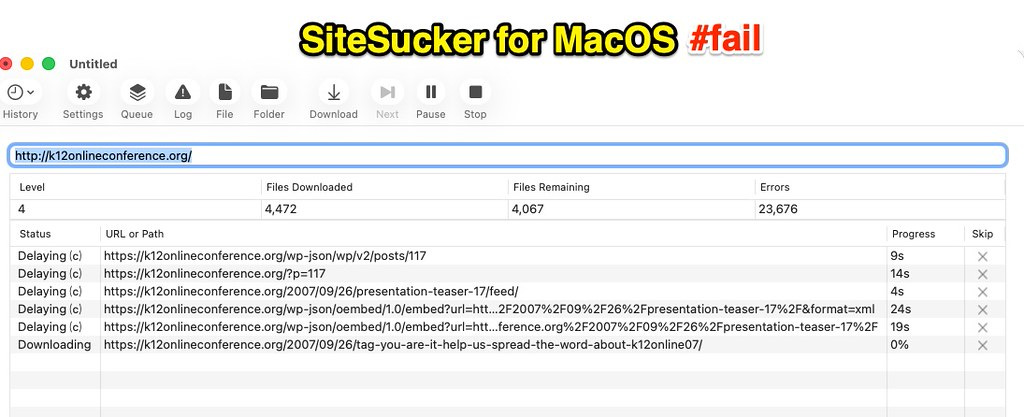
This past weekend I learned about and successfully used another approach for static HTML website backups: HTTrack.
The only reason I could use HTTrack, however, is that I’m finding great success using Claude AI and a customized “SysAdmin” Project (which I’ve customized via specific instructions) to help me form and use complex Linux Terminal commands to make changes to my cloud server. In this post, I’ll share how. More of my learning about and using AI platforms is linked on ai.wesfryer.com. (a Google site, btw.)
What Is HTTrack?
HTTrack is a free, open-source website copier. It crawls a live website and saves every page as a plain HTML file, following links, preserving your URL structure (including WordPress permalinks), and downloading images and other media files. The result is a complete, static copy of your site that looks identical to the original but requires zero PHP, zero database connections, and zero WordPress maintenance.
When a visitor hits a static HTML site, Apache just serves a file. There’s nothing to hack. No login page to brute force. No plugin vulnerabilities to exploit. No database to corrupt.
I installed it on my cloud Linux server with one command in the WHM Terminal:
yum install httrackThe Process
The basic workflow for each site was:
Make sure there’s a fresh backup saved offsite (Google Drive or S3)
Verify the live WordPress site is loading correctly
Run HTTrack from the command line on the server itself
Copy the WordPress media uploads folder directly into the static export
Deploy the static files as the new public_html
Move WordPress to a backup folder (not deleted, just out of the way)
Running HTTrack on the server rather than from my local machine makes it significantly faster. The crawl happens over localhost so there’s no network bottleneck.
The command I used for each site looked like this:
httrack "https://example.org" -O "/home/user/httrack_output" \
"+*.example.org/*" "+*example.org/*" \
-%F "" -v --depth=10 --max-files=50000 \
--disable-security-limits -s0 -M999999999
The key flags are -s0 (ignore robots.txt so the crawl isn’t blocked by a noindex setting – see how EASY that is to circumvent?!) and -M999999999 (no file size limits, so large images and pages aren’t skipped). After the crawl completes, I copy the WordPress uploads folder directly into the static export rather than having HTTrack download every image over HTTP:
\cp -rf /home/user/public_html/wp-content/uploads \
/home/user/httrack_output/example.org/wp-content/
EdCampOKC: The First Test
The first site I converted was edcampOKC.org. This was the organizing site for EdCamp unconferences I helped co-organize for ten years in Oklahoma City, before our family moved to North Carolina. 219 posts, lots of photos, years of community memory.
HTTrack crawled the entire site in about 33 minutes and wrote 1,168 files. Every single permalink works correctly. A URL like /2020/02/28/helpful-links-for-edcampokc-2020/ still returns the right page. The site looks identical to how it looked when WordPress was powering it, but now serves with zero PHP processes.
After the conversion and cleanup, disk usage on my server dropped from 81% to 69%. That’s meaningful on a server that was getting sluggish because of memory pressure.
K12 Online Conference: Unexpected Wrinkles
The site I was most nervous about backing up entirely was k12onlineconference.org. This was an annual online conference for K-12 educators that I helped co-organize for a decade, with around 40 presentations per year. Hundreds of teachers participated over those years, maybe thousands… I really have no idea. Lots of folks. Tons of hugely innovative ideas at the time. Lots of wonderful CONNECTIONS! The content needs to be preserved properly, which means the original visual design matters too.
The challenge was that the WordPress theme for this site had a PHP 8 compatibility bug. One line in the theme was calling count() on a WP_Term object, which PHP 8 no longer supports. Rather than downgrading PHP or switching to a default theme that would change how the site looks, Claude AI patched that single line directly.
The fix was changing:
php

if ( count( $menu ) > 0 && isset( $menu->term_id ) ) {
to:
php

if ( isset( $menu->term_id ) && is_object( $menu ) ) {
One line. Thirty seconds. A decade of conference history preserved with its original visual design intact. There is NO WAY I would have been able to make technical patches / fixes to WordPress Themes like this without the help of AI. Moments like this truly blow my small mind. That’s, in part, why I‘m trying to document and share my journey learning and creating with AI. Being a “digital witness,” but in this case… to a journey of learning rather than family history.
Why This Matters
I’ve been thinking about digital preservation differently lately. Many of the websites I’ve created or helped co-create over the years document significant professional learning. Teachers who attended EdCampOKC in 2013 or presented at K12 Online Conference in 2009 might still link to that content, or maybe organizers of a future EdCamp or PlayDate event. Students might find it. Researchers might reference it.
A static HTML archive preserves that content permanently without requiring ongoing maintenance, plugin updates, security patches, or server resources. That’s a beautiful thing.
If you have old WordPress sites collecting dust on a server, I’d encourage you to look at HTTrack. Even if you’re not a Linux guru on the Terminal, with Claude AI’s help, this is a doable workflow.
More of my experiments at the intersection of open source tools and AI assistance are documented on ai.wesfryer.com. If you have thoughts or comments, please let me know here or on my SpeedOfCreativity.org crosspost.
AI Attribution: I used Claude AI (by Anthropic) to assist with the server commands and theme fix described in this post, and to help draft this post based on notes from our work session. I edited and revised the final result before publishing.
Good for you doing the archiving of WordPress to HTML, it definitely simplifies much to not have to maintain the stack
And impressive for mastering httrack. I've used SiteSucker for a long time w/o any problem (I rather adore the icon), I suspect it uses that under the hood. It took a few iterations to get settings right. I just did it recently for 2 multisites for external projects the original university than mananged sites gave up, and I kept them going under my own domain.
https://bones.cogdogblog.com/muraludg/
https://bones.cogdogblog.com/agora/
There are always things to end around.
Apologies that my initial crosspost from my WordPress blog https://www.speedofcreativity.org/2026/06/02/archive-wordpress-with-httrack/ was incomplete... I think everything is fixed now!