
Vibe Coding a Mythological Creature Spinner
whimsical fun in our middle school coding class

This school year, I’m unable to use SpinTheWheel.io, a random animal selector I’d been using for one of my favorite middle school creature-design projects. Last spring when I was asked to start teaching two sections of AP Computer Science Principles in February, I co-created this lesson with my colleague Todd Johnson, who took over one of my computer programming class sections.* Rather than search for and hand-build a workaround for the spinner website today, I decided to “vibe code” a replacement myself with AI. In this post I’ll summarize and highlight my steps and this experience.
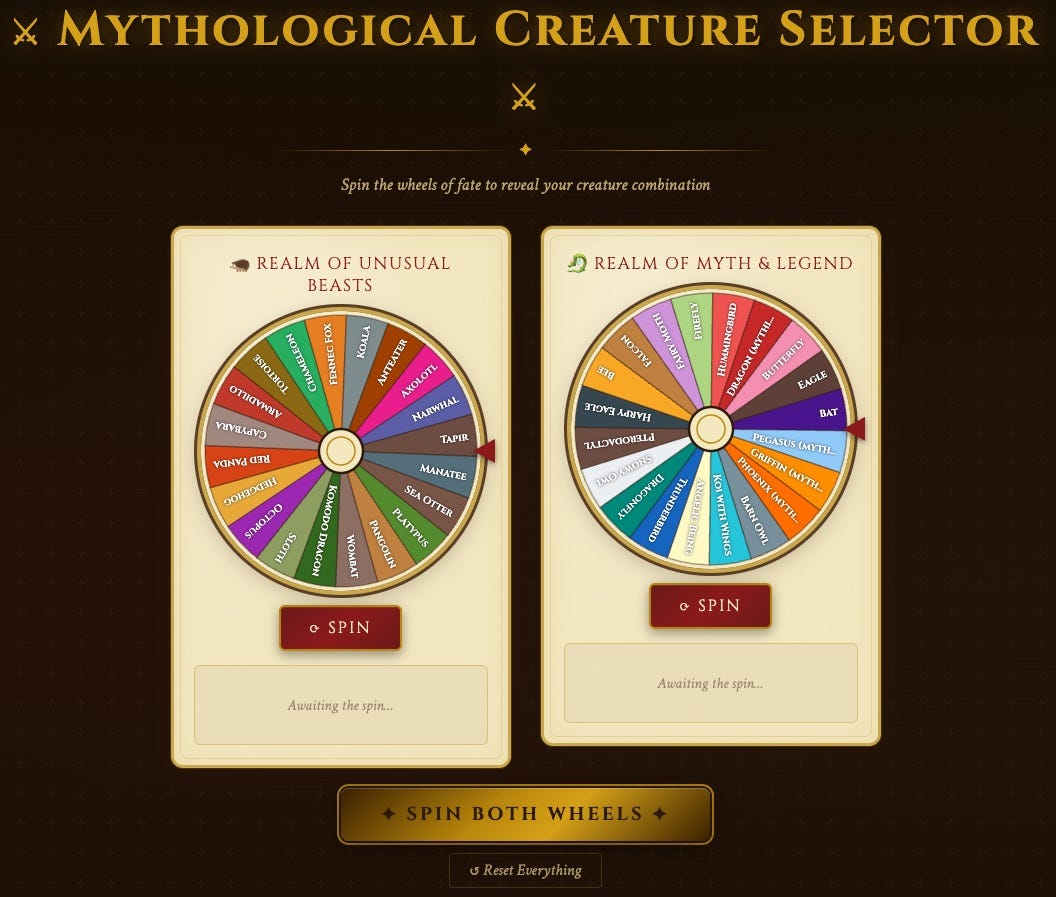
I opened Claude Pro (Sonnet 4.6 model) and described what I needed. This was my actual prompt, my full archived conversation is also available:
I need your help vibe coding the functionality of this double random spinner, which I use as a “mythological creator selector.” https://spinthewheel.io/wheels/QnF5l2mTXVBwoPy9FXUN I’m attaching a screenshot. Each spinner should spin and make a random selection, and display what that selection is… provide the chance to REMOVE 1 or both selections and re-spin… I want this to be all HTML and Javascript in a single HTML file, and it should have comments that are ‘friendly’ for others to use who want to change the selections in each wheel. Any questions to ask to clarify? I’ll want help creating a readme file too so I can share this on my GitHub
About five minutes later, I had a working html file I uploaded to my own server and used in my next class. This evening I shared the source code and an explanatory READ-ME file on my GitHub, and published a working version to GitHub pages:
–> Try it: wfryer.github.io/creature-spin/mythological-creature-selector.html
The replacement is genuinely BETTER than the original. My custom version of SpinTheWheel.io just showed animal / creature names. This version displays a brief description of each creature the moment the wheel lands, and when both wheels stop, a combined banner shows both creatures side by side with their descriptions. That extra context matters for students who may not know what an Axolotl or a Pangolin actually is — and it scaffolds the Flint AI brainstorming step that comes next much more effectively.
The Activity
The left wheel is filled with unusual real animals (Axolotl, Narwhal, Platypus, Pangolin, Capybara, and more). The right wheel has mythological / legendary and other winged creatures (Phoenix, Thunderbird, Griffin, Pegasus, Dragonfly, and more). Students spin both and use whatever combination fate gives them as the foundation for designing an original mythological creature.
That’s where Flint AI enters the picture. Flint is a school-safe AI platform that lets teachers build structured conversational activities — a guided chatbot that asks students questions in sequence rather than just answering them. For this project, I built a Creature Creation activity in Flint that walks students through developing their creature step by step: name, origin story, habitat, diet, personality, special powers, etc.
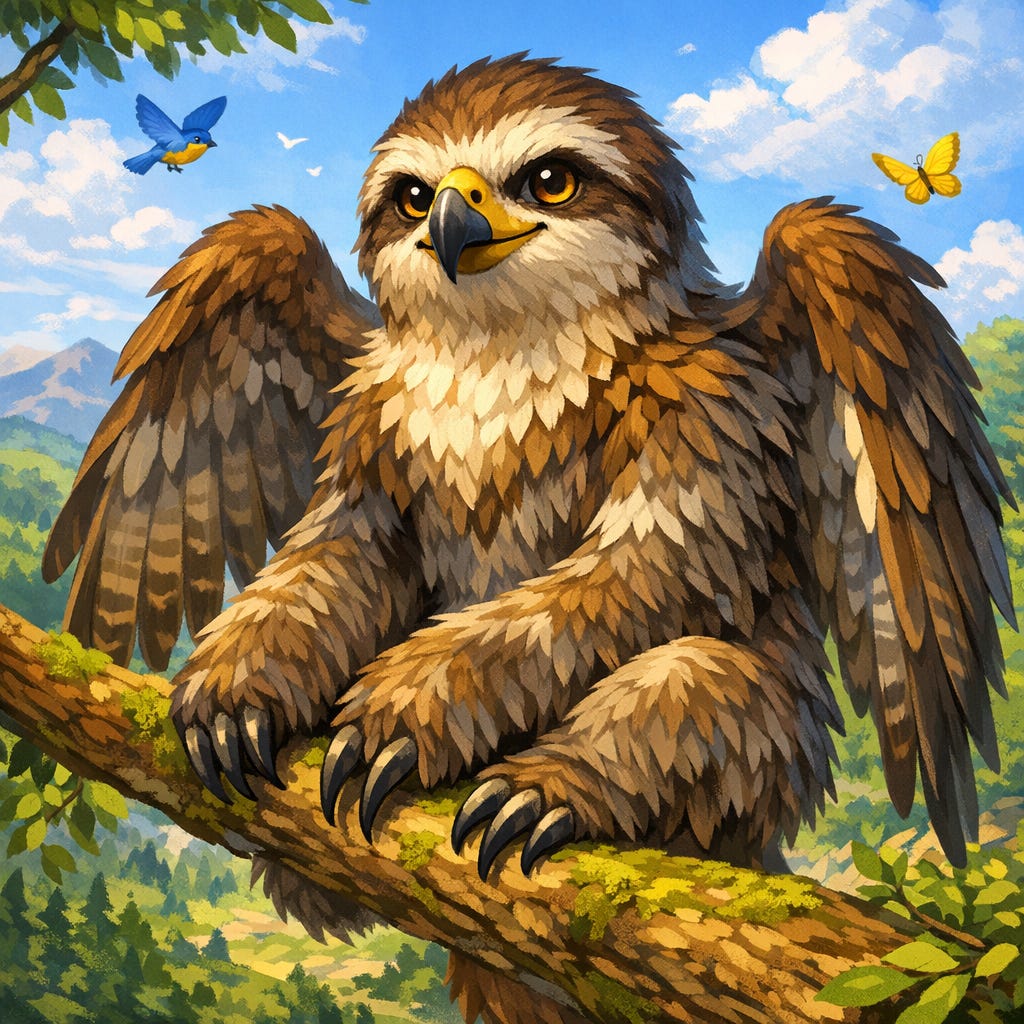
I demoed it myself by spinning the wheels and getting Sloth + Falcon. Following the suggestions of my middle school students in class today, I named my creature “Jeremiah the Slothan,” gave him humble origins on a Mississippi farm, relocated him to Sydney, Australia, established that he heroically saves lost children, and decided he subsists on a rigid diet of corn dogs. Flint engaged warmly with every answer — even the silly ones — and kept building on what I gave it rather than steering me toward anything more “realistic.” When I asked mid-session if it could draw Jeremiah, it generated an image on the spot: a sloth body with falcon wings, sharp eyes, and a hooked beak.
Flint AI functions as a Socratic brainstorming partner. It never tells students what their creature should be — it asks questions and prompts them to go deeper. For middle schoolers who stare at a blank page and freeze, this kind of scaffolded conversation is valuable, and it also provides a structured as well as privacy-safe way to “use AI as a thinking partner, not a cheating partner.”
The Bigger Project
The spinner and Flint activity feed into something larger. Last spring (2025), my students used their creature ideas as the basis for Scratch sprites — designing, animating, and programming their characters. I combined about twenty of those creatures into a single Scratch project example, with original student “story code” included::
–> scratch.mit.edu/projects/1286497553
It’s worth “taking for a spin” to see the range of what students invented.
Using This in Your Classroom
The basic flow:
Spin: Students get their two-animal combination. Descriptions help them start thinking immediately about traits, abilities, and contrasts.
Brainstorm with Flint: Students type their two animals into the Creature Creation activity. The question sequence takes about 15–20 minutes and produces a rich character brief.
Create: Students use their brief to design a Scratch sprite, draw the creature, write a myth, build a trading card, or whatever output fits your class.
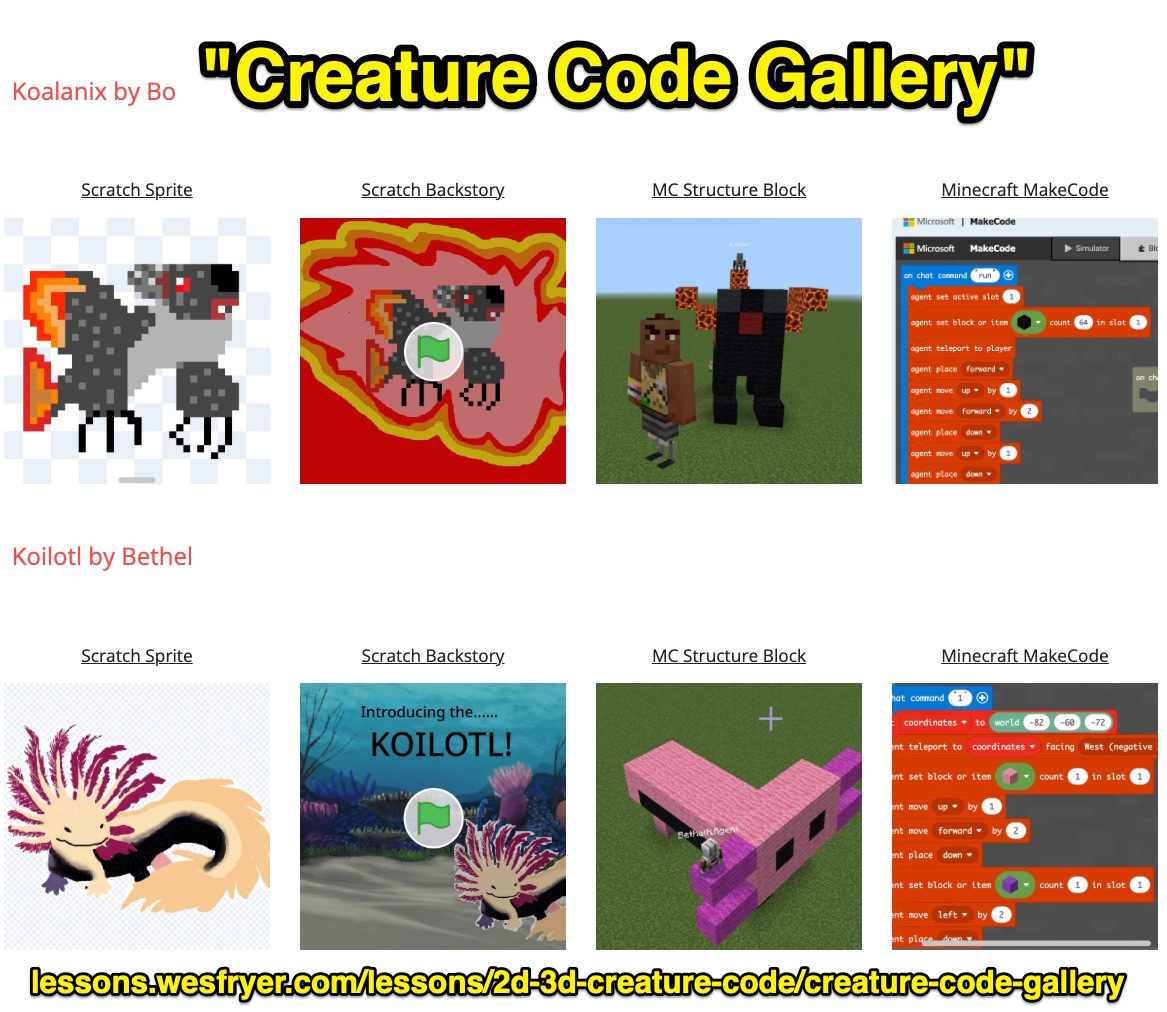
The spinner is free and requires no account. Flint AI requires a school subscription. Scratch is free and browser-based. My full lesson series / unit is also available, along with last year’s “creature code gallery.”
If you want to customize the spinner’s creature lists for a different subject or age group, you can. Instructions are included in the GitHub project README file. The items are configured right at the top of the script with comments. Just edit the name, description, and color for each entry.
AI Attribution: I vibe coded the spinner tool and drafted this blog post with Claude. More of my AI experiments and use cases are shared on ai.wesfryer.com.
* I also need to give a shout-out to Tony Vincent, whose “Spin a Spooky Story” project first inspired me to create and use the lesson “Spooky Scratch Stories” in October each year before Halloween in my middle school coding classes. That’s how I originally learned about SpinTheWheel.io.
Nice new setup! Why were you not able to use http://spinthewheel.io any longer, out of interest…overzealous admins?